
Seferi Mail
Logistics work starts in the inbox — so does Seferi
- One screen
- Sales, operations and personal mailboxes
- Highlight
- Mark what feeds the quote; it reads from there
- Attachments
- PDF, Excel and images pasted into the body
Some of the brands that trust us





- and more
The module from start to finish
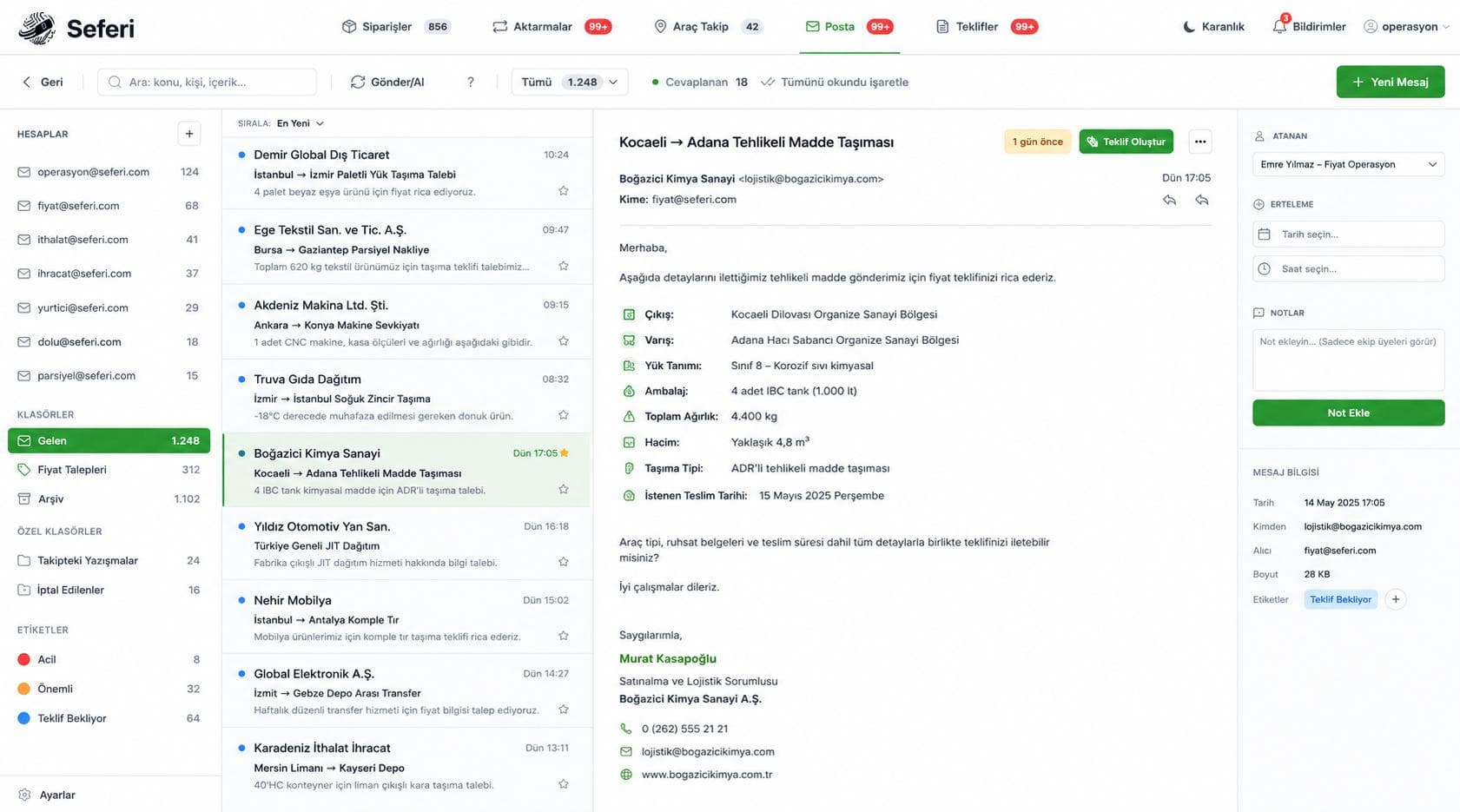
Your sales and operations mailboxes connect into Seferi. You highlight the part of the request that should feed the quote; the address, dimensions and weight are read from there, and the quote goes back as a reply on the same thread.
Product screen
Price requests surface first
Hundreds of mails arrive daily and most are not price requests. The system scores each one and flags the likelihood; nothing is silently discarded, it is only put in order. The decision stays with a person.
How the work flows
Missing information is never invented
If the pickup address cannot be found, the system says so plainly and leaves the field empty. A price built on an invented address costs more than not quoting at all.
- 1
Request lands in the inbox
- 2
You highlight what feeds the quote
- 3
The price is calculated
- 4
The quote replies on the same thread
Panels on the screen
The mail experience you already know
Folders, thread view, compose-reply-forward, attachment preview, bulk actions, search and the usual keyboard shortcuts. Nobody has to learn a new mail program.
No second window, no copy-paste: the request lands, the price comes out, the quote goes back.
What's on the screen
The real names of the panels inside the product, and what each one shows.
- Mail tab
- Sales, operations and personal mailboxes on one screen, with folders and a thread view.
- Mail Accounts
- Gmail and Outlook/M365 connect in one click, everything else over IMAP/SMTP. Whether a mailbox is shared or personal is set here.
- Pending Quotes
- Mail likely to be a price request goes into a queue; the fields that were read can be corrected before saving.
- Fields read
- Company, unloading point, vehicle type, dimensions and validity come out of the part of the body you highlighted.
- Low-confidence flag
- If the reading is uncertain the field is flagged. Invented information never enters a quote.
- Manual paste
- A request that arrived by phone or another channel is pasted as text and enters the same flow.
What does this module take over?
On the left how it runs today, on the right how it runs in Seferi.
The request sits in Outlook, the quote in another tool, with copy-paste in between.
The mailbox lives inside Seferi; what is read from your highlight goes straight into the quote.
In a shared sales inbox nobody knows who is handling what, and customers get two replies.
Threads are assigned to a person, internal notes stay where the team sees them, and snoozed threads come back when it is time.
Used in the daily work
Every item maps to a screen inside the product — none of it is a roadmap.
- Connect corporate mailboxes, with folder and thread views
- Surface the mails most likely to be price requests
- Read address, dimensions and weight from the highlighted part of the body
- Read PDFs, Excel files and images pasted into the body
- Assign a thread to a person, add internal notes, snooze it
- Send the quote as a reply on the very same thread
Who uses it
The same module does not open the same screen for everyone on the team.
Sales team
Opens the request from the queue, prices it from the part they highlighted, and sends the quote as a reply on the same thread.
Shared-inbox owner
Assigns a thread to a person, adds internal notes, snoozes what is waiting on a reply.
Operations
Goes back from an order to the thread the job was born in via "View mail".
Once this module is switched on
In the demo you see these on your own data.
Connects to
Copy-paste and the second program disappear.
In a shared inbox it is clear who is handling what.
The customer never loses the thread — the reply lands under their own message.
What gets asked most before a demo
Do I have to teach my team a new mail client?
No. Folders, the thread view, compose-reply-forward, attachment preview, bulk actions, search and the familiar keyboard shortcuts all work the same way.
Is mail filtered out automatically?
No. The system only flags how likely a mail is to be a price request and queues it; nothing is silently discarded and the decision stays with a person.
What happens if a piece of information can't be found?
The field is left empty and the system says so. A price built on an invented address costs more than not quoting at all.
See Mail running on your own operation
The demo is not a slide deck; it is a session that runs on your own data.
- 01
A 30-minute call
We listen to your operation: how many vehicles, which lanes, which step is still done by hand today.
- 02
A run on your own data
We read a real request from your own inbox and turn it into a quote; you see your own lanes on screen.
- 03
A rollout plan
Which module goes live on day one, what gets migrated, and the per-vehicle price — in writing.